Schedule and Publish Your Video Ads Across EverySocial Media Platform
Open Social Post Studio from your dashboard, pick your video content, set captions and platforms, and schedule Reels, Feed posts, Stories, or Carousels — or post instantly — all in one scheduling popup.
INSIGHTS
Your Complete Social Post Studio Workflow for Video
Go to Social Post Studio in the left sidebar (below AI Videos), open Create/New Post, and use the right panel to choose uploads, ad library creatives, or AI-generated videos and avatars. Add your caption, select accounts, set post type and time per platform, preview on the left, then Schedule or Post Now.
Upload: Upload a fresh image or video directly from your computer.
Caption: Type in the caption/description for your post.
Preview: Look at the left side of the screen to see how your media will look.
HOW IT WORKS
Social Media Scheduler Posts Across Platforms -In 5 Steps
Choose content from your library, select target platforms, set your timeline, preview the layout, and automate your publishing.
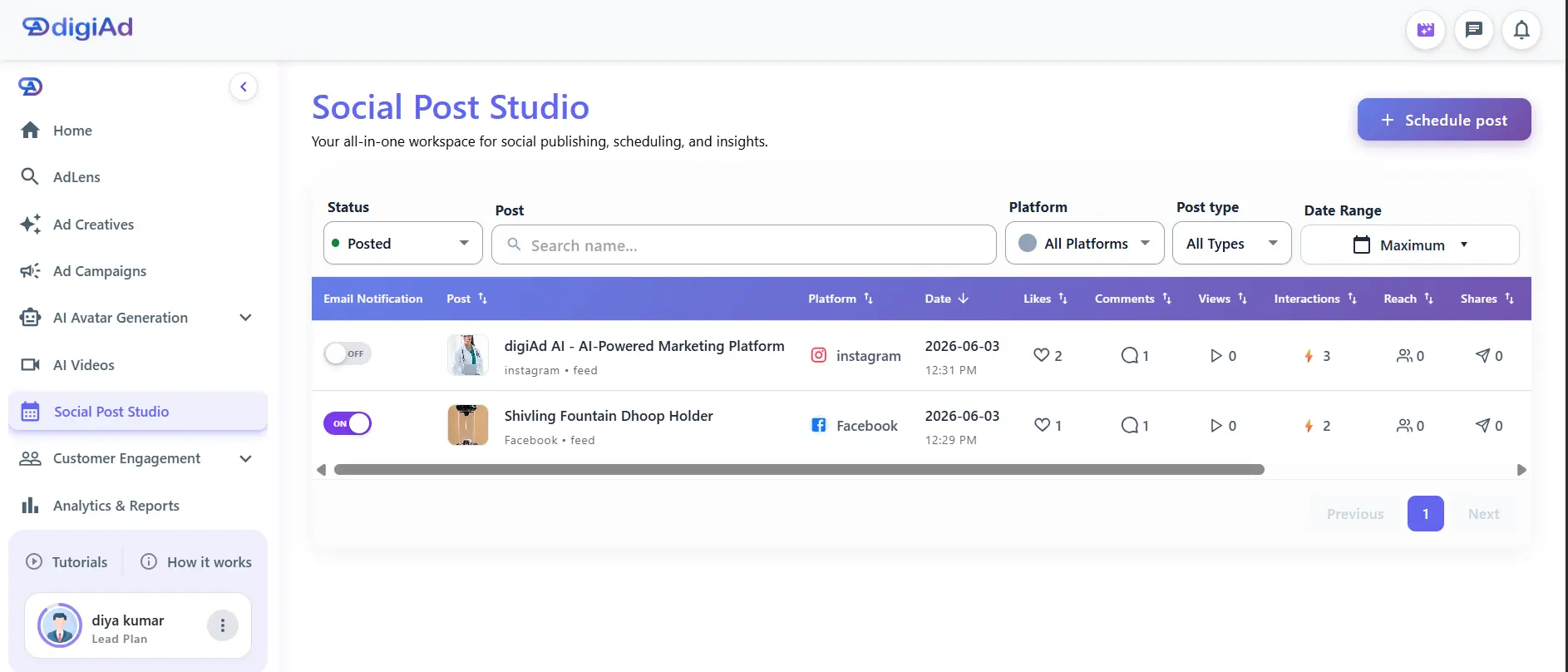
Go to Social Post Studio
- In the left sidebar menu, click on Social Post Studio (located right below AI Videos).
- Click on the Create/New Post button to open the scheduling popup.
Select Your Content
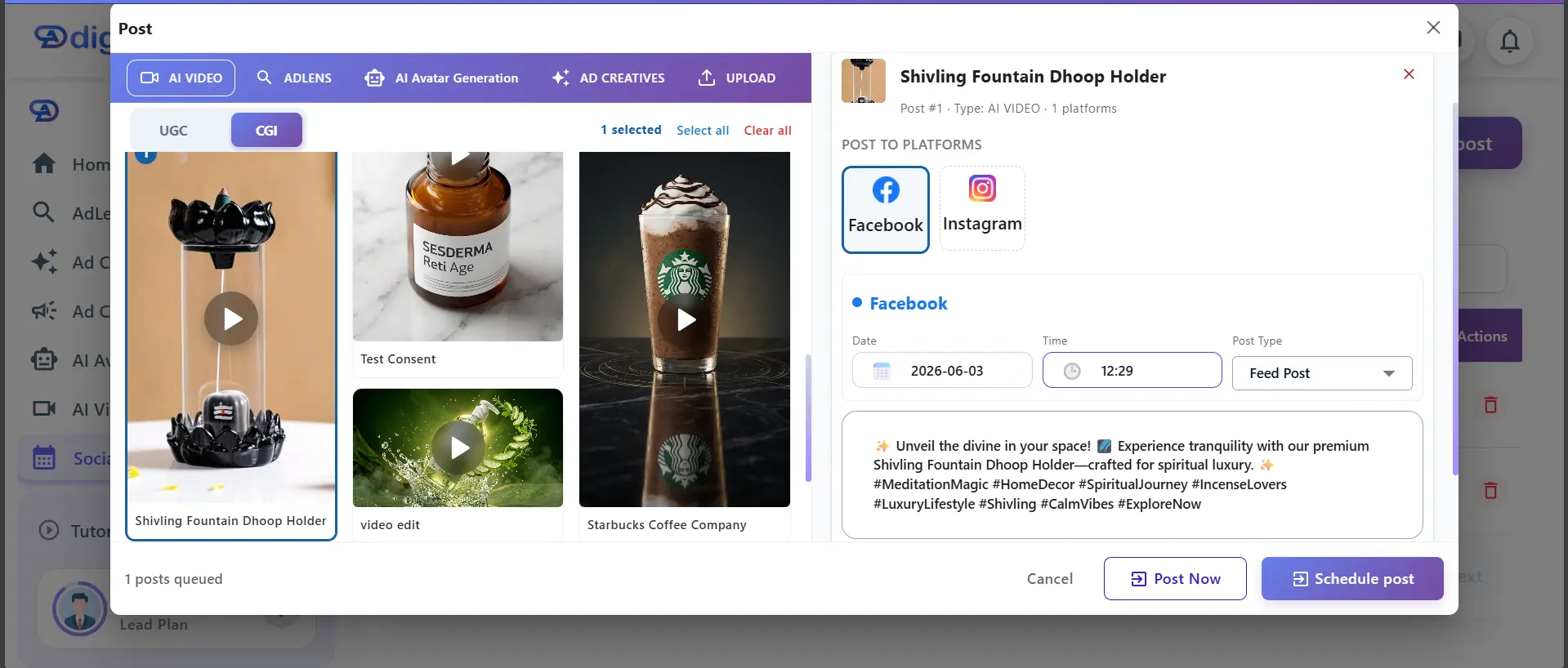
On the right side of the popup, select the content you want to post by browsing the tabs:
- Upload: Upload a fresh image or video directly from your computer.
- Ad Creatives: Pick an existing image, video, or carousel from your ad library.
- AI Video / AI Avatar Generation/AD Lens: Select AI-generated videos or avatars you have created.
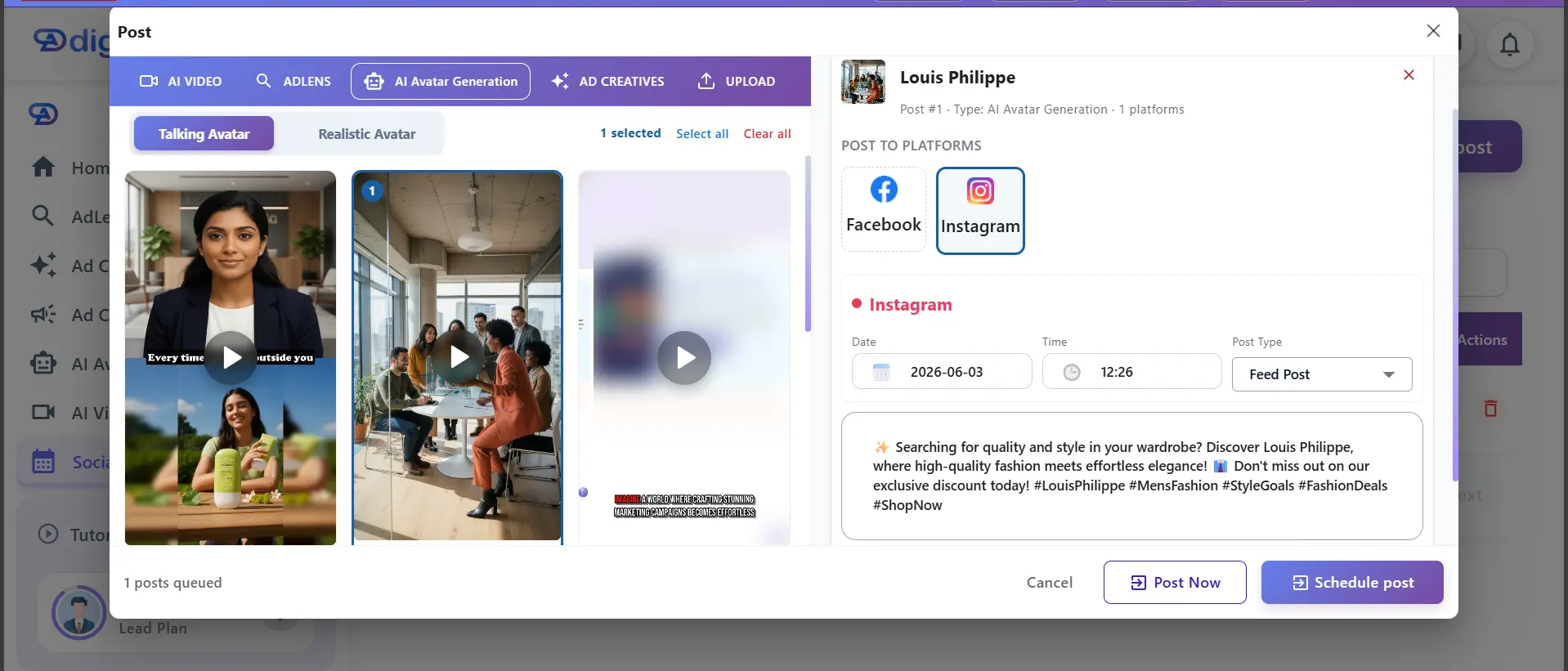
Add Details & Select Platforms
- Caption: Type in the caption/description for your post. (Ensure it meets the character limit for your chosen platforms).
- Select Platforms: Check the boxes for the social media accounts you want to post to (e.g., Facebook, Instagram, TikTok).
Set the Date and Time
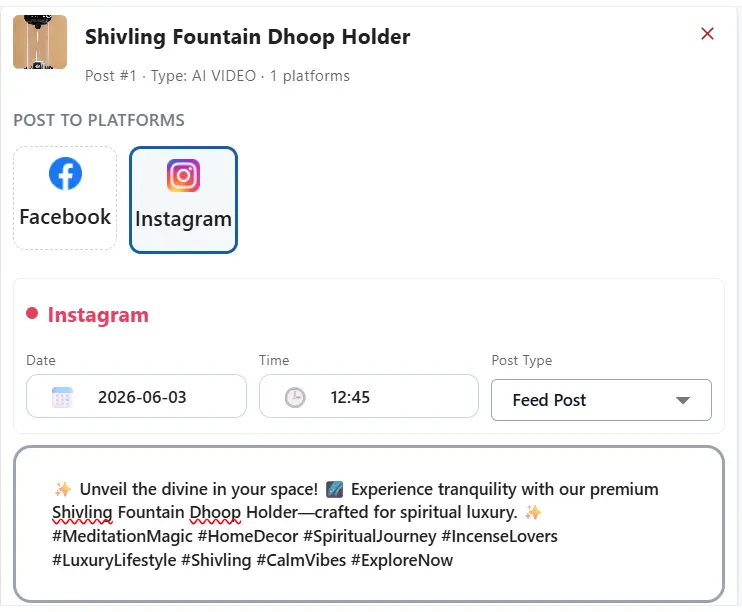
For each platform you selected, you need to configure the schedule:
- Post Type: Select how you want it to appear (e.g., Reel, Feed, Story, or Carousel).
- Date & Time: Pick the exact date and time for it to go live. (Note: The scheduled time cannot be in the past).
- Tip: If you want the exact same time and post type for all platforms, set it for the first platform and click Apply to all.
Preview & Publish
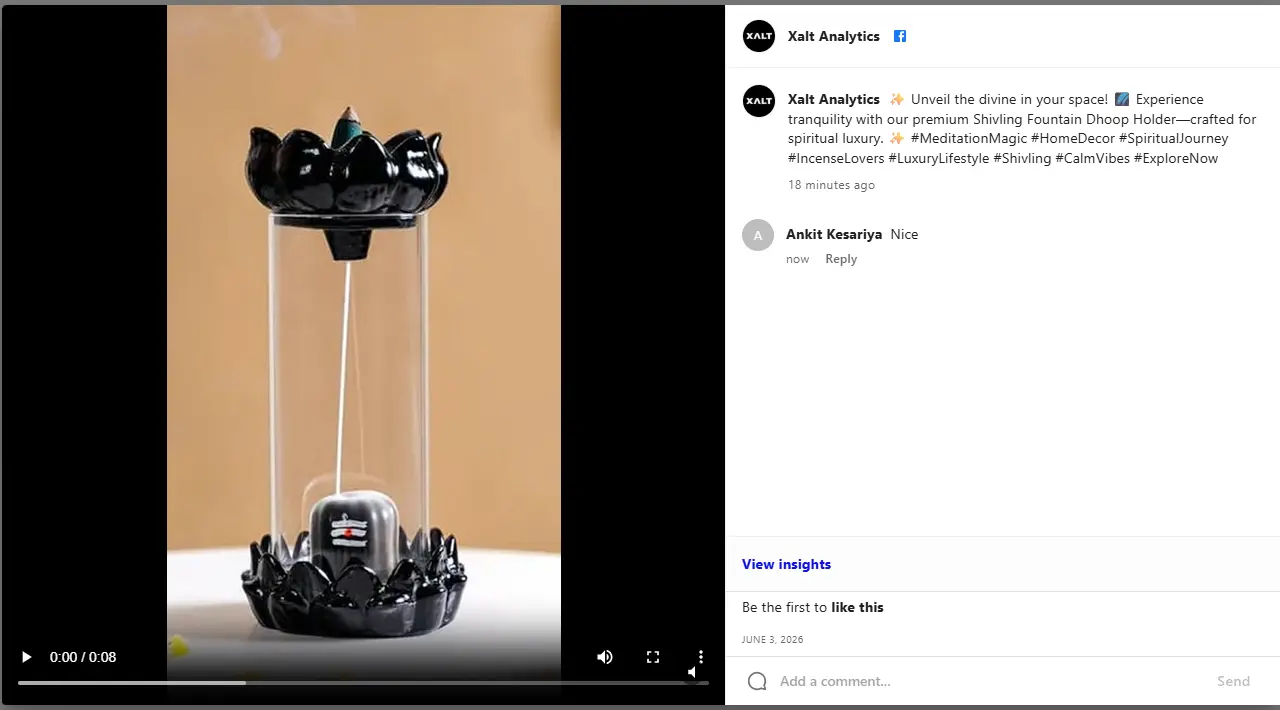
- Preview: Look at the left side of the screen to see a preview of how your media will look.
- Submit: Click Schedule to add it to your calendar. (If you want it to go live immediately, you can use the Post Now button instead).
KEY FEATURES
What You Get?
Go to Social Post Studio
In the left sidebar menu, click on Social Post Studio (located right below AI Videos). Click on the Create/New Post button to open the scheduling popup.
Upload, Ad Creatives & AI Video
Upload a fresh image or video from your computer, pick from your ad library, or select AI-generated videos or avatars you have created.
Caption & Select Platforms
Type in the caption/description for your post (within platform character limits). Check the boxes for Facebook, Instagram, TikTok, and other accounts.
Post Type, Date & Time
Select Reel, Feed, Story, or Carousel per platform. Pick the exact date and time (not in the past). Use Apply to all to mirror the first platform’s settings.
Preview & Publish
Preview on the left. Click Schedule to add to your calendar, or Post Now to go live immediately.
Track Metrics
Find published posts in your Posted list. Toggle Email Notification ON for performance reports every 6 hours (3 credits per email).
Ready to schedule your first video post from Social Post Studio?
Pick your content, choose your platforms, set post type and time, preview, and Schedule or Post Now — all from one dashboard.
Frequently Asked Questions
Find answers to common questions about digiAd AI and how it can help transform your digital marketing.